Quick Answer
If your Airbnb listing isn’t showing in search, first check that its status says “Listed” (not Snoozed or Unlisted), clear any pending “To Do” tasks, and confirm your map pin is accurate. If those are fine, check your settings — Instant Book, Advance Notice, minimum stay, and blocked dates can all filter you out of searches. Beyond that, Airbnb’s 2026 algorithm ranks listings mainly on conversion rate, click-through rate, and the Guest Favorites badge — so competitive pricing, a strong cover photo, and recent positive reviews matter more than ever.
If you’ve noticed that your Airbnb listing isn’t showing up in search results, it’s frustrating — especially when you know the property is good and the calendar is open.
Here’s the reality of how Airbnb search works: the platform shows a maximum of 300 listings per search, displayed 18 per page. If your listing doesn’t make it into that pool, guests searching your area will never see you — regardless of how nice the property is. In markets with lots of short-term rentals, that cutoff hits fast, and every day your listing sits below the fold, its performance signals weaken further.
There is no quick trick to jump to the top of Airbnb search. But listings with the right settings, competitive pricing, and low cancellation rates consistently get more visibility. What works for most of our clients is tweaking their listing regularly — adjusting the price, changing the title, or adding a new photo. These small updates keep a listing feeling active, and Airbnb rewards active listings. A consistent Airbnb SEO strategy can also help you optimize these elements and improve your listing’s overall visibility in search.
Today, let’s talk about what you can do to make your Airbnb listing visible and higher in Airbnb search results — including the April 2026 algorithm updates that changed which signals matter most.
Why is Your Airbnb Listing Not Showing Up on Airbnb?
To get more bookings and a calendar filled with guests, you need your listing to appear in search — which sometimes doesn’t happen for reasons like the listing isn’t live, or Instant Book isn’t enabled. Whatever the reason, we’ll go through each one below, with the fix for every case.
First, Confirm Your Listing Is Actually Live
Before you panic about why your listing isn’t showing up on Airbnb, check the basics first. A surprising number of “invisible listing” cases come down to one of these four issues.

Step 1: Log Into Airbnb and Check Your Listing Status
Log into your Airbnb account and find the “Listings” tab. Look for your property. Its status must say “Listed” for it to appear in search — not “Snoozed,” “Unlisted,” or “Under Review.”
If it isn’t Listed, you may need to finish setup by adding details or uploading missing documents (we cover the “To Do” section below).
Step 2: Preview Your Listing
Once you confirm your listing is Listed, click “Preview Listing” to see how it appears to guests. Preview is a rough approximation — don’t rely on it as the final word.
Step 3: Use Incognito Mode to Double-Check
Preview doesn’t reflect the exact guest view. Open an incognito browser window (in Chrome: three dots → “New Incognito Window”), paste your listing URL, and hit enter. If it loads, your listing is visible to the public.
Step 4: Try a Different Browser for Extra Assurance
Test in another browser too — Safari’s Private Window, Firefox’s Private Browsing, Edge’s InPrivate mode. If it loads consistently across all of them, you’ve confirmed the listing is accessible platform-wide.
How Airbnb's Search Filters Work

Guests rarely browse every listing in a city. They filter — and if your listing doesn’t match the filters guests are using, it never enters their results at all, regardless of how good your ranking would otherwise be.
Airbnb also personalizes results heavily. Two guests searching the same dates and city can see completely different top listings, based on their booking history, language, group size, and search patterns. This means your listing doesn’t have one fixed rank — it has a different rank for every guest who searches.
Here are the filters that matter most:
- Price Range — guests set a budget window. Outside it, you’re invisible to that search regardless of your ranking.
- Instant Book — many guests filter to Instant Book–only listings for faster confirmation.
- Property Type — “entire place” vs. “private room” vs. “shared room.” Mislabeling removes you from an entire category.
- Amenities — Wi-Fi speed, workspace, free parking, and AC filter the most searches. Missing any of these tags means missing every search that includes them.
- Location — proximity to landmarks or specific neighborhoods.
- Guest Capacity — filtered out automatically if your capacity doesn’t match.
- Cancellation Policy — some guests filter specifically for flexible policies.
- Guest Favorites badge — a growing number of guests filter for badged listings only.
Think like a guest and try different searches. Adjust filters and check where your listing appears.
Check Your Listing Status Settings
Sometimes your listing isn’t appearing because of its status setting. Watch for these three:
- Listed — the default. Your property is live and visible in search. Look for the green dot.
- Snoozed — a temporary pause. Your listing won’t show in search results during the snooze period, but it will switch back automatically after. Hosts use this when pausing bookings for personal stays or maintenance.
- Unlisted — completely hidden from search. Your calendar stays intact, but nobody can find you. Note: you can’t unlist if you have pending bookings.
To check and update your listing status:
- Log in and open your dashboard
- Go to “Listings” to see all properties
- Look at each thumbnail — a green dot means “Listed,” a gray dot means “Unlisted”
- If Unlisted, click the listing to open details
- Find the hamburger menu (three horizontal lines) next to the “Arrival guide” section
- Click “Listing status” in edit preferences
- Change status to “Listed”
- Optionally: snooze for 24 hours, then unsnooze. Some hosts have found this resets a stuck listing and gets it back in search faster.
New Listing Approval Pending
After you publish a new listing, Airbnb reviews it before it goes fully live in search — checking description, photos, pricing, and amenities. This normally takes 24 hours; complex or borderline listings can take up to 72 hours.
Note that the “new listing boost” — the temporary visibility bump Airbnb gives new properties — was cut roughly in half in 2026. New listings now make up about 3.3% of first-page results (down from about 6.6% previously), and the boost is shorter-lived. This means new listings need to build ranking signals (reviews, conversion, response rate) faster than in previous years.
What to do while waiting for approval:
- Verify property details, amenities, house rules, pricing, and availability
- Upload high-quality photos and clear descriptions
- Complete every field — empty fields are missed relevance signals
Check Your "To Do" Column
Airbnb’s dashboard flags outstanding setup tasks — verifying identity, completing property descriptions, adding tax information, setting up payment methods. Any incomplete task keeps your listing partially suppressed until resolved.
The colored button next to your listing shows status. Green means live and visible. If tasks show in the “To Do” column, fix them immediately — a live-status listing with incomplete tasks still won’t rank well.
How to resolve “To Do” tasks:
- Log in and open your Listings dashboard
- Find any tasks marked pending or incomplete
- Click each task to see what’s needed
- Follow the on-screen instructions
- Once completed, the notification disappears and status updates
Check Your Map Placement
Have you checked the map placement of your property? A misplaced pin — even by a block or two — can exclude you from proximity-based searches, even though your listing is technically live.
How to double-check and adjust:
- Log in and go to “Listings”
- Select your listing and scroll to the “Location” section in the listing editor
- Click “Adjust” in the top-right of the map
- Move the pin to your exact property location, then click “Save”
- Zoom in with the “+” button if your area is broad, then click “Redo Search Here”
You can’t directly edit the map marker through the Airbnb interface in some cases. If the pin is still wrong after adjustment, contact Airbnb Support to reposition it. It takes time, but accuracy here matters.
Settings That Suppress Your Listing's Visibility
Beyond filters and status, several host-controlled settings can quietly limit how often your listing surfaces.
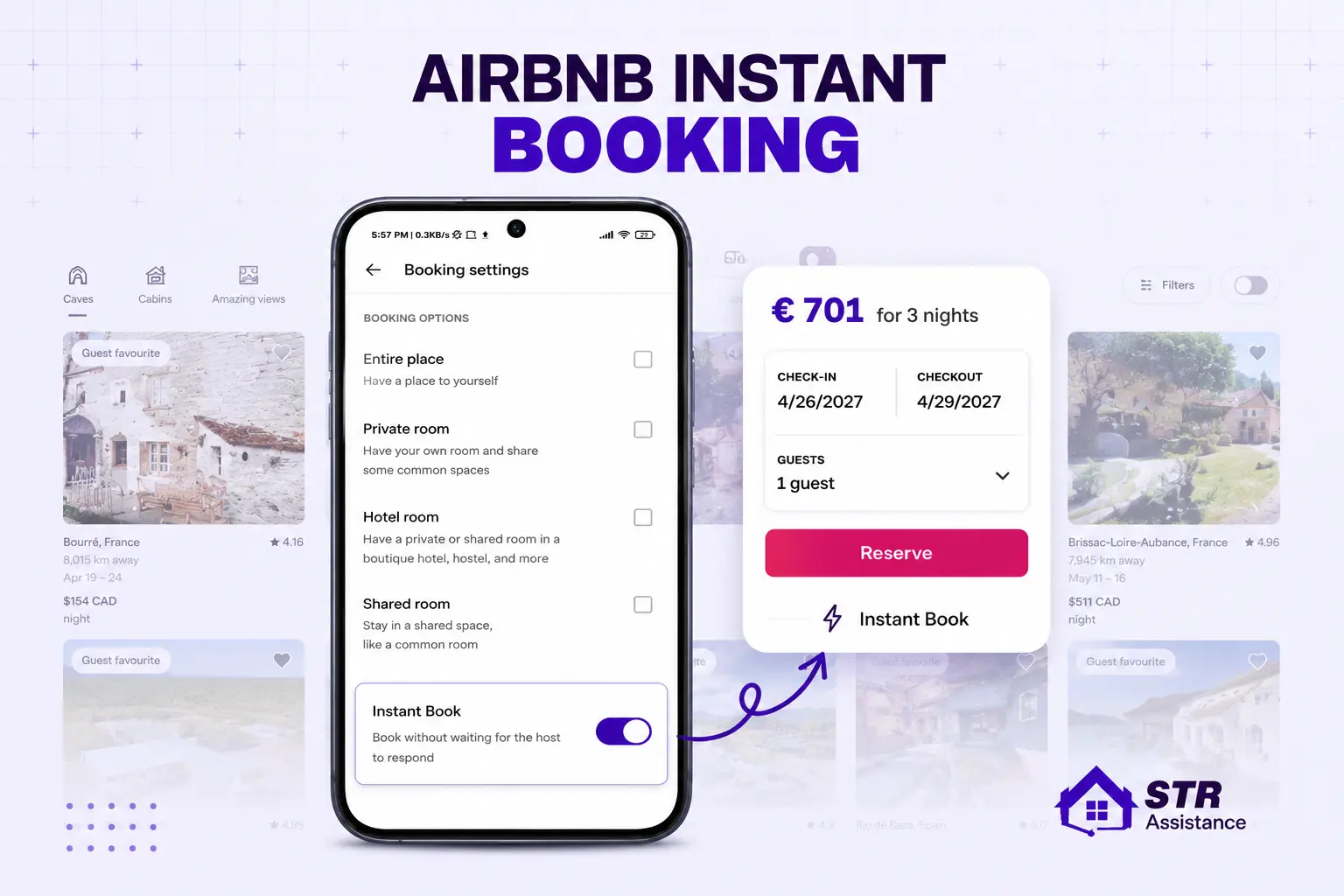
When Instant Booking Is Turned Off

Instant Book on Airbnb listings rank meaningfully higher in Airbnb search recent analysis by StaySTRA and PriceLabs puts the boost at roughly 15–25% higher visibility compared to request-to-book listings. Airbnb treats Instant Book as a guest-friendliness signal because it reduces booking friction, which directly improves conversion rate (the algorithm’s top-weighted factor).
Why turn on Instant Book:
- 15–25% higher search visibility on average
- Faster booking flow that guests prefer
- Feeds the conversion-rate signal Airbnb weighs most heavily
To enable Instant Book, log in → “Listings” → select your listing → scroll to “Booking settings” → toggle “Instant Book” to “On.” You can set requirements (verified ID, positive review history) to protect guest quality without losing the visibility boost.
The tradeoff: with Instant Book on, hosts must accept most bookings that meet the set requirements. Host-initiated cancellations hurt ranking significantly, so before turning it on, decide what requirements protect you enough to say yes to every qualifying booking.
Advance Notice Too Long
The Advance Notice setting controls how much lead time guests need before booking. Set it to 2 days, and guests can’t book within 2 days of check-in — cutting you out of last-minute searches entirely. Same-day bookings make up a real share of urban markets, so shortening this setting (even to “same day” where feasible) opens up an entire segment of searches you were excluded from.
Minimum Stay Requirements
Your minimum-night setting filters you out of every search below that number. A 3-night minimum means you’re invisible to anyone booking a weekend getaway. Unless your market genuinely supports long stays only, a lower or flexible minimum (adjusted by season) keeps you visible across more search combinations.
Blocked Dates and Availability
Blocked dates hide you from search for those dates entirely, and heavily blocked calendars can also reduce visibility overall — Airbnb’s system weighs open availability as a signal that a listing is genuinely bookable. Keep your Airbnb calendar updated regularly, and only block dates you truly can’t host.
To open blocked dates:
- Log into your Airbnb account
- Go to “Calendar” in the top menu
- Find dates showing black with a slash — those are blocked
- Click a blocked date and select “Edit availability”
- Choose “Open nights” and save
Pricing Problems That Hurt Your Ranking
Pricing affects visibility in two separate ways: it’s a filter guests set directly, and it’s an input into Airbnb’s ranking algorithm.
Airbnb’s algorithm uses price competitiveness as a ranking input — a listing priced 10–15% above comparable local properties tends to attract clicks but fewer bookings, which the algorithm interprets as poor value and responds to by reducing search distribution. This is a compounding leak: overpriced listings get fewer clicks, lower conversion, and the algorithm learns to show them less.
One recent shift matters here. Airbnb standardized a 15.5% host-only service fee on December 1, 2025. Because this fee is now built into host pricing (instead of split with the guest), your displayed nightly rate is the full guest-facing number. Many hosts who didn’t reprice after this change now appear uncompetitive to the algorithm even though their net margin is unchanged. If you haven’t adjusted rates since December 2025, review your positioning against local comparables.
Some more tactical pricing advice:
- Airbnb shows the lowest price for your listing over the next 28 days to guests searching without specific dates. Keep those next 28 days competitive to catch broad-date searchers.
- Adjust for demand, special events, and seasonality. Static pricing signals a passive listing.
- Consider dynamic pricing tools (PriceLabs, Beyond Pricing) to stay market-aligned automatically. If you’d rather not track this manually, our Airbnb Dynamic Pricing service handles it day-to-day.
- Offer last-minute deals or weekly/monthly discounts to attract flexible guests.
- Show all fees upfront (cleaning, service) — surprises cause cancellations and hurt conversion.
- Keep pricing steady with strategic adjustments — chaotic swings hurt ranking more than moderate premium pricing.
- Getting first bookings is worth pricing lower than your target rate for. Once you have reviews, you can raise prices gradually. Respond to reviews actively — response engagement itself is a signal.
Incomplete Listing Details
Listings with incomplete information or weak photos rank lower — Airbnb treats every empty field, missing amenity tag, or weak photo as a missed relevance signal. If your listing views are dropping, this is often the culprit slowing your Airbnb booking overall, not just search visibility.
Airbnb provides a page-views graph in your dashboard showing how many people are finding your listing in search. If views are near zero, you have a visibility problem. If views are healthy but bookings aren’t converting, you have a conversion problem (usually pricing, photos, or description).
Check this graph regularly — it helps you spot demand patterns and time your rate adjustments.
Advance Notice and Minimum Stay Requirements
Higher minimum stays reduce potential guests. Longer advance notice cuts you out of last-minute searches. The general rule: lower minimum stay and shorter advance notice for maximum visibility.
Advance Notice
Controls how much time a guest needs before booking. Set it to 2 days, and guests can’t book within 2 days. If you want same-day flexibility, set this to zero.
Minimum Stay Requirements
Sets the fewest nights a guest can book. A 3-night minimum excludes 1–2 night searches entirely. Lower minimums attract more guests, especially for weekend trips.
How the 2026 Airbnb Algorithm Actually Ranks Listings
In April 2026, Airbnb formally disclosed in its Terms of Service update that its search algorithm processes over 800 signals per query. This was the first time the company documented its ranking system in legal terms — meaning the mechanics are now confirmed, not speculated.
Here’s what actually moves rankings in 2026, ordered by impact:
1. Conversion Rate (The #1 Signal)
Airbnb tracks how often guests who view your listing actually complete a booking. This is the most heavily weighted signal in the algorithm. A listing viewed 100 times and booked twice ranks lower than one viewed 50 times and booked five times. Everything else on this list ultimately feeds into conversion rate — photos, pricing, description precision, and completeness all matter because they turn views into bookings.
2. Click-Through Rate (The #2 Signal)
How often guests click your listing when they see it in search. Your cover photo, title, price, star rating, and any badges (Guest Favorites, Superhost) all influence CTR. If your listing appears in search but nobody clicks, the algorithm interprets that as a mismatch and reduces distribution.
Cover photo is the single highest-ROI optimization. The right hero photo can lift click-through rate by 20% or more. Show your most distinctive room at eye level with warm, natural light — not a wide drone shot, and not the exterior unless the exterior is the product. Your title carries real weight here too. Reviewing strong Airbnb listing titles can help you spot what separates a headline guests click from one they scroll past.
3. Guest Favorites Badge (~25% of Ranking Weight)
The Guest Favorites badge has replaced Superhost as the top quality signal in 2026. Awarded to listings in the top 9% of Airbnb for guest satisfaction, it requires a 4.9+ average rating, high review volume, review recency, and near-zero cancellations. Guest Favorites listings have been shown to command premiums of up to 104% over comparable non-badged listings.
The badge itself isn’t a direct ranking factor — but it dramatically lifts click-through rate (guests trust it), which feeds conversion, which the algorithm rewards. Chasing the badge directly is backwards; fix the inputs (review themes, reliability, photos, response time) and the badge follows.
4. Review Quality (Recency > Volume)
Review recency matters more than review volume in 2026. A listing with 200 total reviews but only 3 in the last 90 days will often rank below a listing with 40 total reviews and 12 recent ones. Airbnb’s system reads review content (not just star ratings) and extracts sentiment and topics — recurring positive mentions of “spotless,” “easy check-in,” or specific amenities improve your relevance for guests searching those attributes.
5. Response Rate and Speed
The 2026 benchmark is under 5 minutes. Airbnb tracks response time in minutes, not hours, and treats slow or inconsistent responses as a signal of poor guest experience. If requests go unanswered, you can end up with a low response rate hurting search ranking long before you notice any other problem.
6. Price Competitiveness
Discussed in the Pricing section above. Overpricing hurts conversion, which hurts ranking. Aim to stay within 10–15% of comparable local listings on peak dates.
7. Listing Completeness
Every empty field is a missed relevance signal. Check amenities (all of them), house rules, accessibility features, and photo captions. Complete listings match more searches.
8. Cancellation Rate
Host-initiated cancellations hurt ranking sharply. Even one cancellation per 100 reservations can affect Top Host / Superhost eligibility and trigger a ranking drop.
9. Superhost Status
Still a signal, but treated more as a tiebreaker than a multiplier in 2026. The individual metrics that earn Superhost (response rate, ratings, review count) all improve your ranking directly — but Guest Favorites has more weight than the Superhost badge alone.
10. Natural Language Search Match (2026 Update)
Airbnb’s 2026 search accepts conversational queries — “quiet condo near downtown with fast WiFi and a workspace.” Your description text, amenity checkboxes, and reviews all feed into how well your listing matches natural-language queries. Write your description in complete sentences with the phrases guests actually search for.
This piece was reviewed by our Airbnb SEO expert, who works daily on listing visibility and ranking for our host clients.
Steps to Troubleshoot and Fix the Issue
Here’s how to systematically diagnose and fix visibility issues:
Double-Check Listing Completion
Make sure your listing is 100% complete — every field, every amenity, every photo caption. If any details are missing, your property will not rank well in searches. Check your “To Do” column and clear anything pending.
Review Your Calendar
Confirm no dates are unintentionally blocked. Guests can’t see your listing if the dates they need are blocked.
Adjust Pricing Strategies
If your price is meaningfully higher than similar local listings, guests will click competitors first. Set competitive pricing — even just for the next 28 days to attract broad-date searchers.
Optimize Your Listing for the Algorithm
Keep your listing fresh — Airbnb rewards active listings. Update photos, refresh your description, adjust amenities. Cover photo is the highest-impact place to test changes.
Use Incognito Search
Try searching for your listing in an incognito browser window. It won’t show you your exact ranking, but it will confirm whether basic visibility is restored.
When It's Beyond DIY
If you’ve worked through all of these and visibility issues persist, our Airbnb Listing Management service handles listing optimization, algorithm-aligned title and description work, and ongoing performance monitoring for hosts who want the diagnosis done by someone who works on this daily.
Final Thought
Let’s Talk to Your Airbnb VA
Getting your Airbnb listing to stand out in search is about consistency: fresh photos, competitive pricing, fast response times, and steady positive reviews. The 2026 algorithm rewards listings that reliably turn views into bookings and stays into 5-star reviews.
If you’d rather not track all of this yourself, working with an Airbnb virtual assistant means someone else audits your listing status weekly, adjusts pricing to match demand, responds to guest inquiries within minutes, and monitors ranking signals — so visibility issues get caught before they cost you bookings.
Stay active, tweak your listing when needed, and keep pace with algorithm changes. That’s how listings recover from visibility drops — and stay visible once they’re back.