Most hosts who list on Booking.com for the first time make the same mistakes — wrong cancellation policy, incomplete amenity lists, photos in the wrong order, and a base rate that quietly kills search visibility from day one. The listing goes live. The bookings don’t come. Weeks pass before they realize the setup is the problem.
Listing your property on Booking.com correctly the first time changes that outcome entirely. The platform attracts between 380 and 560 million visits per month (Source: SimilarWeb, 2025), operates across 220+ countries in 45+ languages, and gives vacation rental hosts direct access to international travelers that Airbnb and Vrbo rarely reach — particularly across Europe and Asia.
At STR Assistance, we manage and optimize 50+ Booking.com listings as part of our broader short-term rental virtual assistant operations across 800+ active properties. This guide reflects what we’ve seen work in real listing setups, not what Booking.com’s help centre says in theory.
We’ll walk through every step in order: pre-listing requirements, account setup, property details, pricing, payment configuration, the Extranet, ranking optimization, and your first 30-day launch strategy.
Types of Properties You Can List on Booking.com
Pick the wrong category at sign-up, and your listing ends up in the wrong search results. Guests who want your type of place won’t find you.
- Apartment: A unit inside a building. Condos and flats belong here.
- Vacation home: A standalone house. Think single-family homes, townhouses, beach cottages.
- Villa: Detached, with private extras such as a pool, garden, or views. Booking.com keeps villas in its own search category. If your place qualifies, list it as a villa rather than a vacation home. The competition is thinner there.
- Hotel: For properties with separate bookable rooms, each set up individually. Small property, doesn’t matter. If guests book rooms, not the whole place, use this.
- Guesthouse / B&B: Owner-operated, with one or a few guest rooms. Breakfast is sometimes included.
- Unique stay: Treehouse, yurt, houseboat, converted barn. Booking.com has a dedicated section for these. Fewer listings mean less competition, which often means better placement.
What You Need Before You List on Booking.com
Before listing on Booking.com, prepare your STR permit, tax details, insurance, payout account, house rules, and high-resolution photos. Also require your verified ID, safety equipment, and complete property information to speed up approval and improve rankings.
Most hosts start the registration form before they are actually ready. Then they either submit incomplete information or abandon the process mid-way. Having everything in order before you open the registration page saves you from that and gets your listing live faster. Here are the details that help you better understand what you actually need:
Legal and Regulatory Requirements
Booking.com does not verify your local compliance before activating your listing, but that does not mean you can skip it. Regulatory enforcement happens at the city and property level, not at the platform level.
Most cities and regions now require a short-term rental permit or registration number before you can legally operate. In the EU, Australia, and major US cities, that number must appear in your listing. Booking.com has a dedicated field for it in the Extranet. Leave it blank in a market that requires it, and you risk fines that have nothing to do with the platform.
Tax registration is a separate issue. In some markets, Booking.com automatically collects and sends VAT or lodging taxes for you. This applies to parts of the EU and some US states. In markets where it does not, those taxes fall on you. Before you accept your first booking, check your market’s tax settings in the Extranet Finance tab. Missing a local occupancy tax is the kind of thing that creates problems retroactively.
If you manage a property for an owner, get written authorization before you list it. Booking.com may ask for it during verification or weeks later. Not having it ready stalls your listing. If the property is in an HOA-governed building, check the HOA rules first. It may explicitly prohibit short-term rentals, and the building’s rules override anything Booking.com allows.
STR Insurance
Standard homeowner’s insurance does not cover short-term rental activity. Most policies explicitly exclude commercial use, and STR activity falls under that exclusion. This is not a hypothetical gap, it comes up in real claims.
Booking.com provides Partner Liability Insurance covering up to $1 million USD per reservation at no additional cost. It covers third-party bodily injury and property damage claims made by guests during their stay. It does not cover your property’s contents, damage caused by the guest to your property, or host liability outside of the reservation period.
You still need a separate STR-specific policy. Look for one that covers guest-caused property damage, lost income during repair periods, and year-round host liability. Relying solely on Booking.com’s coverage leaves your property contents and income unprotected.
Property Readiness
Booking.com guests in 2026 expect WiFi as a baseline. A listing without it immediately drops out of a large share of filtered searches. Beyond WiFi, the safety items you need to disclose are a smoke detector, a CO detector, and a fire extinguisher. These are searchable filters on Booking.com, and many guests specifically filter for them.
Photography is where most new listings fall short. Booking.com requires a minimum resolution of 2048×1080 pixels and recommends 4000×3000. Images below the minimum are rejected automatically. Listings with 20+ photos rank consistently higher than those with fewer. Clean the property, stage it, shoot in natural light, and get at least 25 photos before you start the registration.
Information to Have Ready
Before you open the registration page, have these on hand:
- Full property address and GPS coordinates
- Government-issued ID for identity verification
- Bank account details for payouts
- Tax identification number
- Complete amenity list on both property-level and room-level
- At least 20 high-resolution photos
- Your cancellation policy has been decided
- House rules written out
- STR permit or registration number, if your market requires one
- A dedicated business email address, not a personal one
Commission invoices, booking confirmations, and any compliance requests all go to that email. Using a personal address creates a real organizational problem once bookings start arriving.
How to List Your Property on Booking.com: Step by Step
To list your property on Booking.com, create a Partner account, add property details, upload high-quality photos, set pricing and policies, configure payments, review the listing, and then publish it live.
The whole process takes under 30 minutes if you have everything ready before you open the registration page. Do it in order. Steps skipped during setup show up as problems after the listing goes live.
Step 1: Create Your Booking.com Partner Account

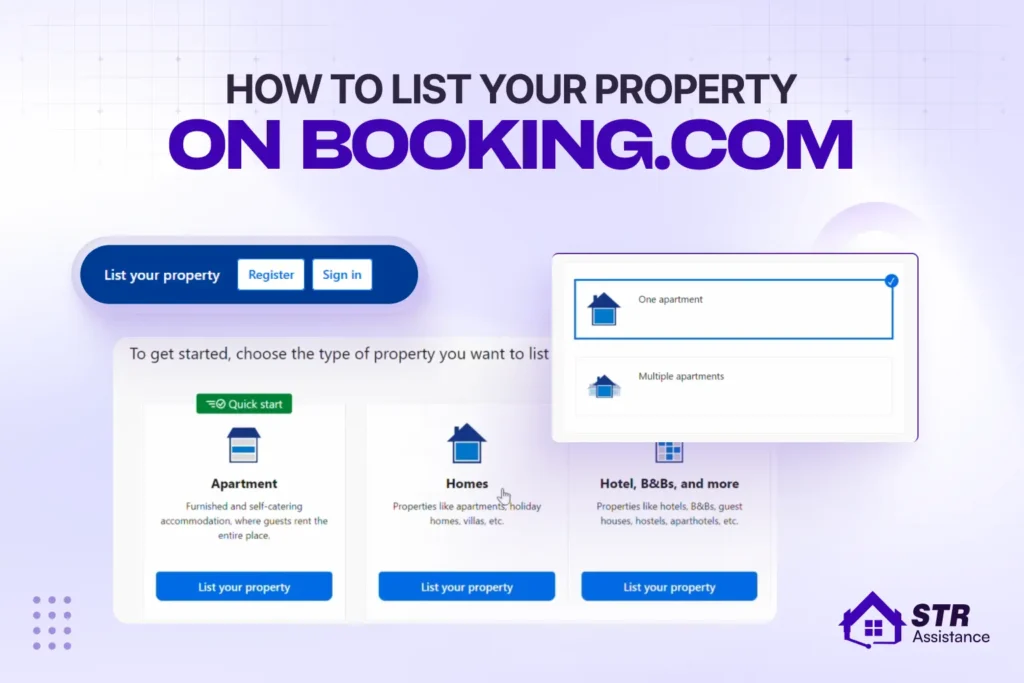
Open join.Booking.com and click “List your property.” The first question you need to answer properly is your property type: Hotel, Apartment, Vacation Home, Bed and Breakfast, Hostel, Guesthouse, or Unique Property. Pick whichever matches your property most closely. Each type runs a slightly different setup flow. Choosing the wrong type is not the end of the world, but changing it later requires a support request and holds up your listing.
If you are listing your own property, register as a private host. If you manage properties for other owners, use the property manager registration path. The invoicing setup and account tools are different between the two. Property managers who register as private hosts end up dealing with tax documentation problems later.
Enter your full property address. Booking.com maps it immediately and shows you what other nearby listings look like and how much they charge. Take 60 seconds to look at those results before you move on. You will need that context when you set your rates.
Use a business email address for the account, not a personal inbox. Every commission invoice, booking notification, and platform communication goes to that address. Mixing it with personal email leads to things getting missed.
Booking.com will ask you to verify your identity with a government-issued ID. If you are managing a property for someone else, have a written authorization letter from the owner ready. Verification usually clears within 24 to 48 hours.
Once your account is approved, you land in the Booking.com Extranet. This is your control panel for everything: your listing, calendar, rates, reservations, messages, and invoices. Open it, look around, and then go download the Pulse app on your phone. Pulse is the mobile version of the Extranet. You will use it every single day to respond to guests and check your calendar. Get it set up now, before your first booking comes in.
Step 2: Set Up Your Property Details
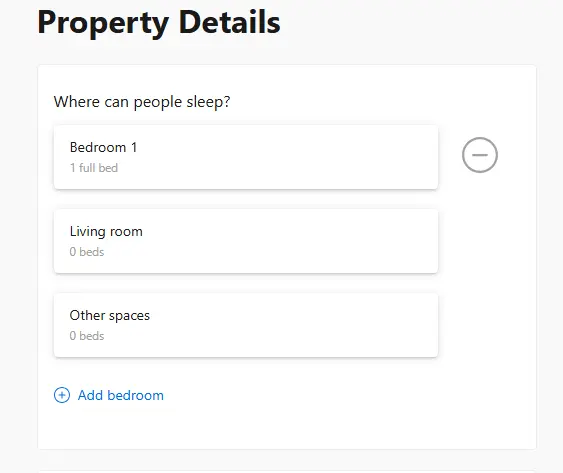
Your property details decide where your Booking.com listing appears, who clicks it, and whether the guest books or keeps scrolling. Small setup mistakes here reduce visibility before your listing even has a chance to compete. Here’s the correct way to set up property details:
Property Name
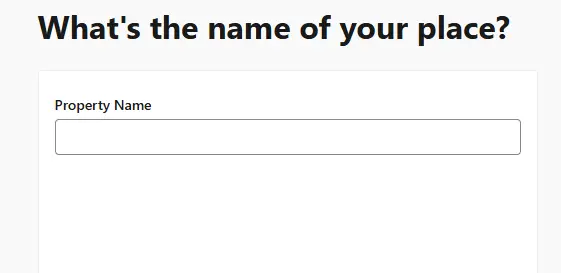
Your property name is the first thing guests read in search results, before they click anything. Make it specific. “Modern 2-Bedroom with Sea View, 5 Minutes from Old Town” tells a guest exactly what they are getting and whether it suits them. “Nice Apartment” tells them nothing and gets skipped.
Include something concrete: a standout feature, a location reference, or the property type. That specificity is what stops a guest from scrolling past you.
Property Description
Booking.com gives you two description fields: a short summary and a longer detailed description. Fill both.
The short summary appears in search result cards. Write it like a one-paragraph answer to the question “Why should I stay here?” The detailed description is what converts a curious click into an actual booking.
One thing most hosts do not think about: Your listing is automatically translated into 43 languages. Write in plain, direct English. Idioms break in translation. Phrases like “a stone’s throw away” or “home away from home” become meaningless or strange in other languages. Write the way you would explain the property to someone who has never been to your city and is arriving from abroad.
Cover these four things in this order:
- what the property feels like when you walk in,
- how the space is laid out,
- what the neighborhood is like, and who the property suits best.
Guests think through properties in that sequence when they are deciding.
Property facilities and amenities
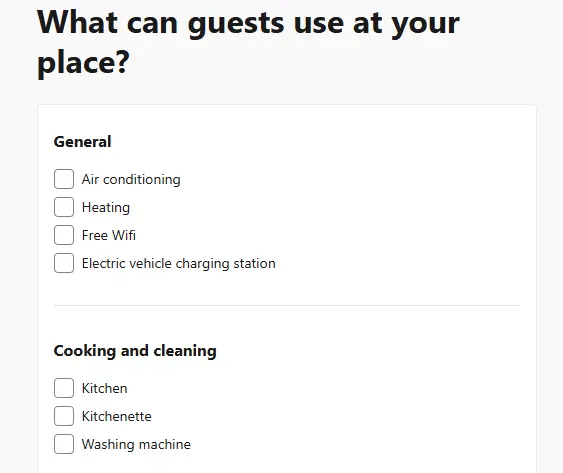
Booking.com splits amenities into two levels: property-wide and room-specific. Both need to be filled out. Most hosts fill the property-level section and leave the room-level fields blank. Those empty fields drag down your Visibility Score, the metric Booking.com uses to rank your listing in search results.
The amenities guests search for most on Booking.com right now are free WiFi, free parking, air conditioning, non-smoking rooms, and pet-friendly rooms. The ones that lift your click-through rate above the basics: a terrace or balcony, a garden, a sea or mountain view, a private pool, an EV charger, and a proper workspace. If your property has any of these, make sure they are listed.
Safety features matter too. You need to declare smoke detectors, a fire extinguisher, a CO detector, and any CCTV cameras. CCTV disclosure is required. Guests actively filter for safety features, and an undisclosed camera is grounds for Booking.com suspending your listing.
Room and space configuration
Booking.com treats each bed type as a separate search filter. King, queen, double, twin, and sofa beds are all distinct options. List every bed in every room accurately. A guest searching for a property for four people with two king beds will not find you if your listing is incorrect.
Set your maximum occupancy accurately. Set your bathroom configuration accurately, whether bathrooms are ensuite or shared. These fields control which guest searches your listing appears in.
Step 3: Upload Photos That Win Bookings
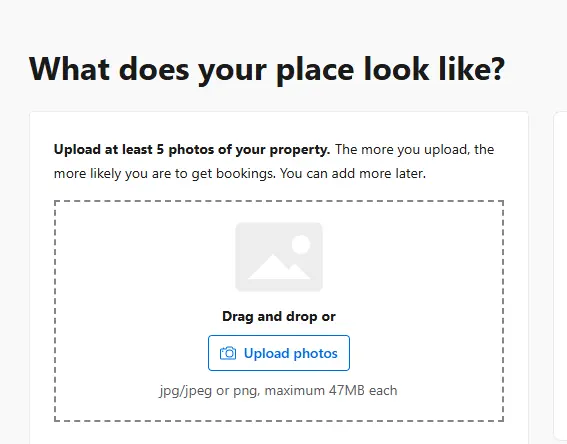
Guests decide whether to click on your listing based on the first photo alone. They have not read your description yet. The cover image controls your click-through rate more than anything else on the page.
Booking.com Photo Requirements And Recommendations
Minimum resolution is 2048×1080 pixels. Images below that are rejected automatically, no warning, they just do not upload. Target 4000×3000 pixels for best quality across devices. Upload at least 20 photos. Listings with more photos consistently rank higher in search results.
Complete shot list for a new listing
Photograph these in every listing:
- Exterior, during the day, clean and well-framed
- Main living area, your best interior shot
- Each bedroom separately
- Each bathroom
- Kitchen, clean and organized
- Any outdoor space (terrace, balcony, garden, or pool)
- Any standout feature: a view, a fireplace, something guests will remember
- The neighborhood or a recognizable nearby landmark
Photo order strategy
Your first photo should be the most visually compelling image you have. A view, an outdoor space, or a striking living area. Second and third slots go to the bedroom and main living area. Bathrooms and storage go at the end.
You can reorder photos any time inside the Extranet. Worth doing. Test a different cover image for two weeks and see whether your click-through rate changes.
One more thing: Booking.com lets you add a caption to every photo. Almost no host does this. Write one specific sentence per image. “Private rooftop terrace with direct sea view” is useful. A blank caption field is a missed opportunity. Captions are read by Booking.com’s search algorithm and help your listing surface in relevant searches.
Step 4: Set Your Policies
Your policies shape both booking volume and guest quality on Booking.com. The right setup improves visibility, reduces disputes, and prevents avoidable problems before the stay even starts.
Cancellation Policy
Your cancellation policy affects where your listing ranks in search. Booking.com ranks more flexible policies higher. A strict or non-refundable-only setup pushes you down, particularly in markets where guests are still comparing several options before committing.
The options are Non-Refundable, Flexible, Moderate, Strict, and Super Strict. For a new listing, start with Flexible or Moderate. Yes, you are more exposed to late cancellations. But you need bookings and reviews first. Without those, rank does not matter because no one is seeing you anyway. Once you have 10 reviews and an established position, tighten the policy if you want to.
A practical setup that works in real listings: run two rate plans at once. A flexible-rate priced slightly higher and a non-refundable rate with a small discount. Guests who want flexibility pay slightly more. Guests who want the lower price give up cancellation rights. Both types of books. You keep your ranking.
House Rules
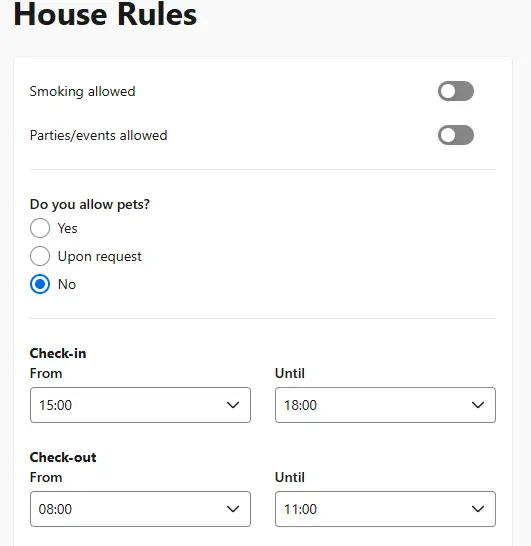
Write your check-in and check-out times clearly. Booking.com draws guests from all over the world, and hospitality norms vary significantly. A guest from Japan and a guest from Brazil may have very different assumptions about what “flexible check-in” means. Be specific.
State your smoking policy. State your pet policy, including any pet fee. State whether children are welcome. State your events policy. State your quiet hours. Guests who read vague rules make assumptions, and assumptions are where problems start.
Damage Deposit
You can set a damage deposit on Booking.com, and you should for most properties. Unlike Airbnb, where the platform manages AirCover claims, on Booking.com the deposit is yours to control and yours to collect. Set it in the Extranet under Policies. Guests pay it at check-in, or it gets pre-authorized on their card before arrival.
Set a deposit if your property is pet-friendly, sleeps more than four people, or has premium furnishings. The exposure without one is real.
Booking Requirements
You can require guests to show a valid ID at check-in and to provide a verified phone number before their booking is accepted. These requirements reduce your conversion rate slightly because they add a step. They also screen out the bookings most likely to go sideways.
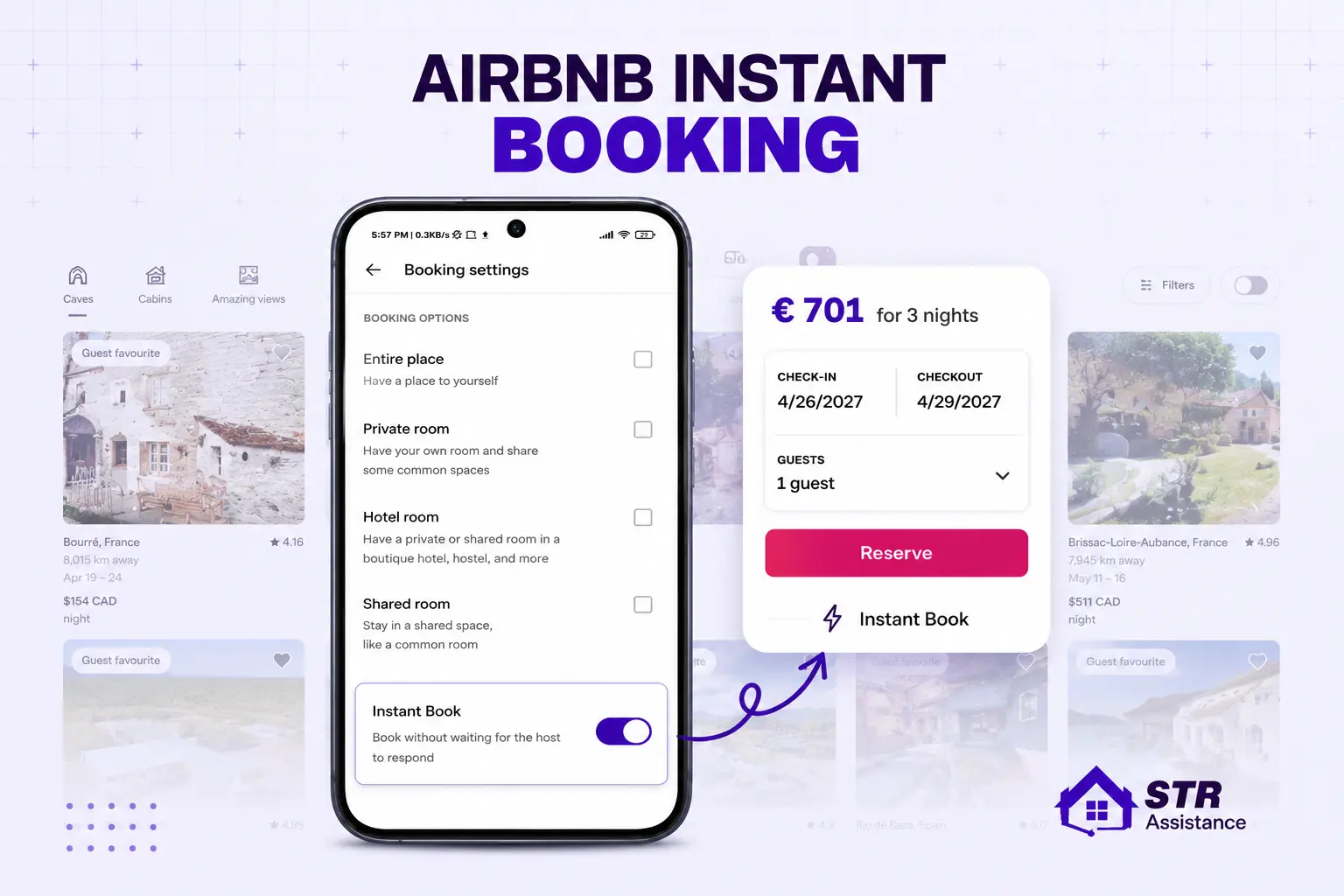
On Airbnb, you can choose between Instant Book and Request to Book with minimal ranking impact. On Booking.com, switching to Request to Book actively suppresses your search visibility. Keep Instant Book on. Manage guest quality through your deposit and ID requirements instead.
Step 5: Set Your Pricing
Pricing setup determines whether the listing gets clicks, bookings, or sits invisible in search. Booking.com rewards competitive pricing, active promotions, and flexible rate plans from the beginning.
Base Rate and Rate Plans
Your base rate is the nightly price guests see by default. On top of that, Booking.com lets you run additional rate plans. Three of them actually move the needle for new listings.
The Non-Refundable rate is a lower price for guests who pay the full amount upfront. Booking.com shows it higher in search for guests who have already fixed their dates. You get paid at booking, not after check-out. Enable it from day one. It takes five minutes to set up and tends to bring in guests who do not cancel.
The Mobile rate is a discount for guests booking through the Booking.com app. In 2024, Booking’s mobile app had more than 100 million users. The app now accounts for over 60% of bookings on Booking.com. Without a mobile rate, your listing simply does not appear in certain app search placements. A 10% discount is where most hosts start.
Weekly and monthly discounts reduce how often you turn over the property. In markets where stays naturally run longer, like cities with business travel and beach towns in high season, they work especially well. They reduce cleaning cycles without requiring any manual intervention.
Understanding Booking.com Fees In 2026
According to Houst, Booking.com commission averages around 15%, though it can range from 10% to 25% depending on the market and property type. The exact rate depends on your location, property type, and which programs you join.
Here is what catches most new hosts: commission is not deducted from each payout. Booking.com invoices you once a month, covering all check-outs from the prior month. You pay that invoice from your account balance. If the balance is short, your listing will be blocked until the payment clears. Set a reminder at the start of each month to check the invoice.
Airbnb takes about 15.5% per payout, deducted automatically. Vrbo takes 8% in the US. Booking.com’s base rate is close to Airbnb’s, but joining the Preferred Partner programme adds roughly 3% on top.
If Booking.com processes payments on your behalf, an extra fee of 1.1% to 3.1% applies on top of the base commission. That covers payment processing, chargeback protection, and currency conversion. About 59% of hosts use this. Collecting directly from guests avoids that fee, but chargebacks and payment disputes become your problem.
Promotional Pricing Tools
Early Booker offers a discount to guests who book well in advance. It fills your calendar in advance during periods of low demand. Last-Minute Deal applies a discount automatically to open nights within 7 to 14 days. If you get cancellations and have gaps, this fills some of them automatically.
The Genius programme discounts rates for Booking.com’s frequent travelers. Getting in requires a minimum review score. As of 2026, just turning it on no longer guarantees extra visibility. The algorithm now looks at your conversion rate and listing quality more than whether Genius is active.
New Listing Pricing Strategy
Price 10 to 15% below what similar properties in your area charge until you have 5 to 10 reviews. That is not a permanent rate. It is what gets you your first bookings before your listing has a track record. Enable the Non-Refundable rate plan from the start.
Turn on any new listing promotions Booking.com suggests during setup. They typically run for 90 days and give you extra early exposure. Once reviews come in, raise your rates to market.
If you already use PriceLabs or Beyond Pricing for Airbnb, both connect to Booking.com’s Extranet. And the same dynamic pricing logic applies across all platforms, including Booking.com.
Step 6: Choose Your Payment Setup
Payment setup affects cash flow, chargeback risk, payout timing, and the amount of operational work you handle after each Booking.com reservation. Choosing the right option here determines whether you prioritize control or convenience in daily operations.
Option 1: Collect Payments Directly From Guests
You charge the guest at check-in or via virtual credit card. You handle refunds, disputes, and chargebacks. Hosts with an existing payment system and experience managing disputes can run with this. For most people setting up their first Booking.com listing, it just adds work.
Option 2: Payments By Booking.com
Booking.com collects from the guest and pays you out at check-in. They handle chargebacks. Pre-authorized card holds work in 2026, so you can verify the guest’s card before they arrive. Bank transfer and credit card processing fees are waived this year. If you manage Airbnb and Booking.com simultaneously, this option eliminates much of the administrative back-and-forth.
Setting Up Your Payout Details
Add your bank account in the Extranet under Finance. Configure VAT and tax settings for your market. Your commission invoice arrives by email at the start of each month. It covers everything that was checked out in the prior month. These are not automatic deductions. They are bills. Pay them before your listing gets blocked.
Step 7: The Booking.com Extranet
The Extranet at extranet.Booking.com is your main control panel. Listing details, rates, reservations, messages, invoices- all of it is here. You will use the Pulse app for most day-to-day tasks, but configuration happens in the Extranet.
Key Extranet Sections Every Host Must Know
- Calendar: Availability, blocked dates, minimum stay, and advance booking window. Set it up to 18 months out. A stale calendar with wrong availability is the most common cause of double bookings across the listings we manage. Update it whenever something changes.
- Rates and Availability: Base rates, promotional plans, and room type rates.
- Inbox: All guest messages in one place. There is no separate Booking.com guest messaging app. Every conversation happens here or in Pulse. Your response rate is tracked and directly affects your Visibility Score.
- Analytics: Visibility Score, click-through rate, conversion rate, and comparison to nearby listings. Check it every week. The problems show up here before they show up in your calendar.
- Finance: Commission invoices, payout records, revenue by period. Download each invoice and keep it. You will need them at tax time.
Pulse: the Booking.com mobile management app
Download Pulse before your first booking, not after. iOS and Android. Through it: reply to messages, update rates, check the calendar, and manage reservations. Green means open, yellow means booked, and red means blocked.
Turn on push notifications for bookings and messages. Response time affects your Visibility Score. A notification you miss at 11 pm is a booking response that comes in the next morning instead.
Pulse is for daily management. The Extranet is for settings and configuration. You need both.
Step 8: Go Live
Before you click publish, run through this checklist:
- Property description covers opening experience, layout, location, and ideal guest
- All photos uploaded, captioned, and in the correct order
- The amenity list is complete at both the property and room levels
- Cancellation policy and house rules set
- Base rate and at least one promotional rate configured
- Payment method selected and bank account verified
- Tax information is complete in Extranet Finance
- Calendar opens with the correct minimum stay and advance notice settings
- Pulse app installed and push notifications active
- Review import from other platforms initiated
After you publish, Booking.com reviews your listing before it goes visible. Most listings are approved within a few hours to 48 hours. In some markets, Booking.com may request a verification call or send a code by post. Use the review window to write your guest message templates and familiarize yourself with the Extranet navigation. The first booking inquiry often arrives within hours of approval.
How to Rank Higher on Booking.com
Ranking higher on Booking.com depends on listing-quality signals such as title clarity, full amenity completion, and competitive pricing. It also includes Instant Book settings and consistent calendar activity. All of these factors improve the Visibility Score and search conversion. Let’s look at each of these factors that directly influence and actually drive higher ranking:
Write A Strong Property Title
Vague titles lose clicks. Put the property type, one real feature, and a location clue in your title. “Seafront Villa with Private Pool, 10 min to City Center” lets guests decide fast. That’s what you want. If you’re also creating an Airbnb listing, these Airbnb property title examples can give you additional ideas for writing concise, feature-focused titles.
Use SEO-Friendly Descriptions
How many people sleep comfortably? What’s the neighborhood like at night? Where’s the nearest grocery store? Is street parking an option? Write those answers. Booking.com indexes your description text, so specific amenities and location details help you show up when guests search for them.
Add All Amenities
Booking.com ties your Visibility Score to the completeness of your listing. A half-filled amenity section doesn’t just look bad, it actively drops your ranking. Go through every field, including floor level, view type, and accessibility features.
Enable Instant Booking
Switching to Request to Book cuts your search visibility. Manage guest quality through deposit requirements and ID verification instead. Those tools exist for exactly that reason.
Keep Your Calendar Updated
Long gaps in availability tell Booking.com’s algorithm that the listing is inactive. Block dates, update minimum stays with the seasons, and open availability as far out as you know it.
Maintain Competitive Pricing
If your listing shows up in search but people don’t book, your visibility drops. Price slightly below market when you’re new or in a slow period. That keeps your conversion rate healthy and your ranking stable.
If you deal with poor pricing, low conversion rates, and weak visibility, all are reasons to reduce bookings. Our listing management service can help you to fix these across platforms, including weekly rate optimization on Booking.com.
Booking.com Fees and Commission Explained
Booking.com does not deduct commission from your payouts the way Airbnb does. Instead, it invoices you once a month for all checkouts from the prior month. The first time the invoice lands in your inbox. Many new hosts spend the payout first, only to be surprised by the bill later. Plan for it from day one.
- Base commission: The base commission averages 15%, but your actual rate sits somewhere between 10 and 25%. It is determined based on your country, property type, and cancellation policy. You can check the exact figure in the Extranet under Finance before you ever take a booking.
- Invoicing: After each invoice is issued, you have until roughly the 2nd to 5th of the month to flag any no-shows or cancellations. After that window closes, the invoice locks. The amount gets pulled from your account balance. If there isn’t enough there, Booking.com will pause your listing until you settle it. No incoming bookings during that time. Keep a buffer in the account specifically for this.
- Payments by Booking.com processing fee: If Booking.com collects payments from guests on your behalf, they add a processing fee of 1.1 to 3.1% on top of your base commission. The exact percentage depends on your country and the guest’s payment currency. About 59% of hosts use this setup. The trade-off is real: you skip chargebacks and payment disputes entirely, but you pay for that protection in the processing fee.
If you collect payments directly at check-in, that fee disappears. But if a guest disputes a charge, it is your responsibility to resolve it.
- No listing fee: Commission only applies to completed, charged bookings. Flexible cancellations made within the free window generate no commission. Non-refundable bookings that are cancelled still generate commission, because the guest was charged.
- Preferred Partner programme: It adds about 3% to your commission rate. Booking.com says it gives you 65% more page views and 20% more bookings. Whether that math works in your market depends on your conversion rate and your pricing room. You need a 70% performance score and a 7.0 review score to qualify. Do not rush toward it. Get your first reviews, look at your Visibility Score analytics, and decide once you have actual data from your listing.
First 30 Days on Booking.com: Your Launch Strategy
The launch window matters more than most hosts realize. Booking.com’s algorithm pushes newer listings into more searches during the first 30 to 90 days. After that window closes, you compete purely on review count, conversion rate, and listing quality. Get the basics right in month one, and your ranking carries forward. Miss it and you are grinding uphill from a weak start.
Here is what to do, in order
- Cut your price by 10-15% below the local market rate: This is temporary. The goal is your first 5 to 10 bookings and reviews, the point at which your listing stops looking new and starts competing with established properties. Do not try to earn the full market rate before you have reviews. You will wait a long time for bookings that will not come.
- Import your existing reviews before your first guest checks out: Booking.com lets you pull in your review score from Airbnb or Vrbo during setup. A listing showing 4.8 stars with 60 reviews converts far better than a blank profile. Most guides skip this step entirely. Do not.
- Turn on every promotional rate plan Booking.com offers during setup: This means the Non-Refundable rate, the mobile discount, and any early-booker promotion the platform offers. New listing promotions give you extra search visibility for roughly 90 days. Ignore them, and you are leaving free exposure on the table at the one moment the platform is actively working in your favor.
- Keep response time under 1 hour for the full first month: Booking.com tracks your response rate, which feeds directly into your Visibility Score. One slow response in the first week costs you more ranking than it would in month six. Stay on Pulse, check the inbox morning and evening at a minimum.
- Reply to every review: After each checkout, Booking.com automatically sends the guest a review request. You do not need to prompt it. What you do need to do is respond to every review that comes in. Thank the positive ones briefly. Address any concerns in the negative ones calmly and without being defensive. Future guests read your responses before they book.
If you are managing multiple platforms and need a single team to handle everything, our short-term rental virtual assistance manages the Booking.com launch process, including pricing setup, review import, promotional activation, and first-month guest communication. From strategy to execution, every part of the process has already been proven across active short-term rental listings, so growth is for sure on us.
The Challenge of Managing Booking.com Alongside Airbnb and Vrbo
Managing three platforms means separate inboxes, delayed calendar sync, different pricing, and three review systems. Double bookings happen. Manual work fails. Three platforms mean more bookings and more chaos. Here are the real challenges managing all three together:
Separate inboxes: Airbnb messages stay in the Airbnb inbox. Booking.com messages stay in Extranet and Pulse. Vrbo messages stay in their own system. You manage three communication streams at all times. Miss a 2 AM message on Booking.com, and that platform lowers your response rate. Your speed on other platforms does not matter.
Calendar sync delay: iCal takes 15 to 30 minutes to update across platforms. A guest books within that window after a cancellation. You now have two guests for the same night. Double bookings happen during high demand when reservations fill up quickly.
Manual pricing fails: Each platform charges different fees. To earn the same net revenue, you need different base rates on each platform. Adjusting all three manually for every change in demand takes too long and invites mistakes.
Three review systems: Booking.com uses a 10-point scale. Airbnb uses stars. Vrbo uses its own format. Monitoring and responding across three systems adds workload with every new listing.
Different guest expectations: A check-in message that works for an Airbnb guest may feel off to a Booking.com guest from another country. You need platform-specific communication. Generic messages do not work across all three.
Cleaning coordination: Bookings from three platforms change cleaning schedules unpredictably. Real-time coordination with cleaners becomes a constant task.
The breaking point: Your first double booking or a missed late-night message triggers a penalty. That is when you realize manual management already costs more than a proper system.
Tools That Actually Help With Booking.com
Channel managers. You need one if you list on more than one platform. They instantly sync your calendar, prices, and reservations across Airbnb, Booking.com, and Vrbo. No 15-minute iCal delay. The four we use for client listings:
- Hostaway- Best for many properties
- Guesty- Handles complex operations
- Lodgify- Good for direct bookings too
- Smoobu- Simple and affordable
Pick based on how many listings you have and how messy your setup is.
- Dynamic pricing tools: Set rates automatically based on demand, competitors, and empty calendar days. PriceLabs and Beyond Pricing both integrate directly with Booking.com’s Extranet. Run one tool instead of manually adjusting prices across three platforms. Saves hours every week.
- Unified inbox: Guest messages from Booking.com, Airbnb, and Vrbo all in one place. Hostaway and Guesty have this built in. If you cannot check three different apps all day, you need this. It keeps your response rates from tanking.
- Cleaning coordinators: TurnoverBnB and Turno. Bookings come from three platforms. Schedules change constantly. These tools update cleaners automatically when a booking moves. No more texting cleaners at midnight.
How STR Assistance Helps Hosts List and Manage Booking.com Properties
We Help You
List Your Property
STR Assistance is a short-term rental virtual assistant company managing 800+ active properties across Airbnb, Vrbo, and Booking.com — including 50+ Booking.com listings across multiple markets. The patterns in this guide come directly from that operational experience.
For hosts listing on Booking.com for the first time, we handle the full setup: account creation, property configuration, photo ordering, policy setup, rate plan activation, and new listing promotion enrollment. We also handle importing reviews from existing platforms — the step most hosts miss that converts a blank new listing into one showing a proven review score before the first guest checks in.
For hosts already on Booking.com who aren’t getting the bookings they expected, we conduct a listing audit — Visibility Score analysis, amenity completeness check, photo order review, cancellation policy assessment, and rate comparison with local competitors. In most cases, issues are specific and can be corrected within a week.
For multi-platform hosts managing Airbnb, Booking.com, and Vrbo simultaneously, we provide full Airbnb virtual assistant services covering all three inboxes, calendar management, pricing, and cleaning coordination. Our guest communication is available 24/7 across all platforms.
If you’re expanding from Airbnb to Booking.com and want the launch handled correctly the first time, contact us. If you manage multiple listings and the operational complexity has grown beyond what makes sense to handle manually, the same applies.
FAQs
Is Listing On Booking.com Free?
Yes. You pay no upfront fee. You only pay 10-25% commission after a guest checks out. The global average is 15%.
How Much Commission Does Booking.com Charge Hosts?
The commission ranges from 10% to 25%, depending on your property and market. The global average is 15%. Booking.com invoices you monthly.
How Does Booking.com Payment Work For Hosts?
You have two options. You can collect payment directly from guests. Or you can use Payments by Booking.com to have the platform handle everything and pay you at check-in.
How Long Does It Take For My Booking.com Listing To Go Live?
Most listings go live within a few hours to 48 hours. Some markets require identity or property verification, which can add a few days.
Can I List The Same Property On Booking.com And Airbnb At The Same Time?
Yes. Most hosts list on both platforms. You need a calendar sync to prevent double bookings. A channel manager gives you real-time sync without delays.
What Is The Booking.com Extranet?
The Extranet is your management dashboard at extranet Booking.com. You update your listing, calendar, rates, reservations, and guest messages there. The Pulse app is the mobile version.
What Is The Booking.com Pulse App?
Pulse is the mobile app for iOS and Android. You use it to view your calendar, reply to guests, change rates, and manage bookings from your phone. Download it right after you create your account.
What Is The Booking.com Genius Programme?
Genius is a loyalty program for frequent travelers. You opt in and offer at least 10% off to Genius members. You get higher search visibility in exchange for the discount.
How Do I Improve My Booking.com Visibility Score?
Complete every amenity field on your listing. Order your photos so the best ones appear first. Reply to guest messages in under one hour. High review scores and booking rates also boost your score.
Can I Sync Booking.com with Airbnb?
Yes, you can use iCal to sync both calendars. The iCal sync has a 15- to 30-minute delay, which poses a risk of double-booking. A channel manager eliminates delays through real-time API sync.
How Is Booking.com Different From Airbnb For Hosts?
Booking.com invoices you monthly rather than charging a commission per payout. Guest screening is less strict than Airbnb’s. The platform defaults to Instant Book. You message guests inside the Extranet. The audience is more international, especially European. Your listing reaches 43 languages automatically.
Bottom Lines
Booking.com takes an effort to set up correctly. The audience makes it worth that effort. It has 560 million monthly visits, 31 million listings and 43 languages. That reach beats Airbnb and Vrbo combined.
Fix your setup mistakes before they hurt your ranking. Incomplete amenities kill visibility. Weak photo order kills conversion. A strict cancellation policy on a new listing kills bookings. A static calendar kills trust.
Import your existing reviews before your first guest checks out. Price low for the first 30 days. Respond within one hour. After 10 reviews, you compete with established properties.
If you’re expanding across platforms, it’s worth understanding how to list your property on Airbnb before optimizing your Booking.com strategy. Likewise, learning how to list a property on Vrbo can help you reach a wider audience and diversify your booking sources.
Running multiple platforms becomes unmanageable fast. Get a channel manager or hire a professional VA team like our STR Assistance, who’s proactively handling listing setup, optimization, and multi-platform management. One inbox, one calendar, where there is no chance for double bookings.